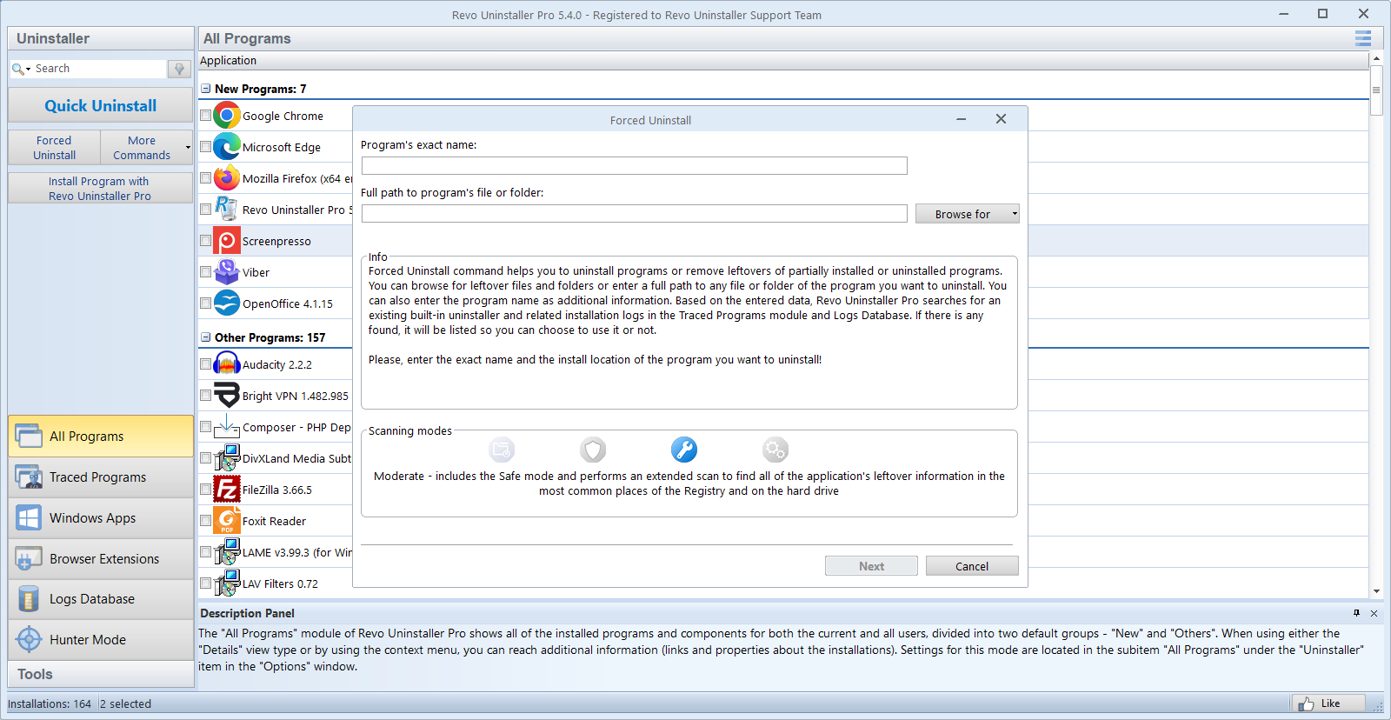
Forced uninstall
For entries that are broken or missing from the usual list.
Use when Add/Remove shows nothing but files remain, or when MSI rollback left a half-registered product.

What people use Revo Uninstaller for: leftovers, targeting, and cleanup.
The program groups work into uninstall modules (desktop apps, Store apps, traced installs, browser extensions) and maintenance tools (startup, junk, Windows shortcuts, backups). This page highlights the pieces readers ask about most. Your build may label menus slightly differently; always match what you see on screen before deleting anything.
Windows Settings removes the primary package entry and runs the vendor script when one exists. It does not always enumerate companion services, per-user caches, or WOW6432Node duplicates. A dedicated tool helps you review those layers in one workspace, but the same safety rules apply: if you cannot explain a path, do not delete it.
See the comparison graphic in home playbook and the ghost installs article when the OS and the control panel disagree.
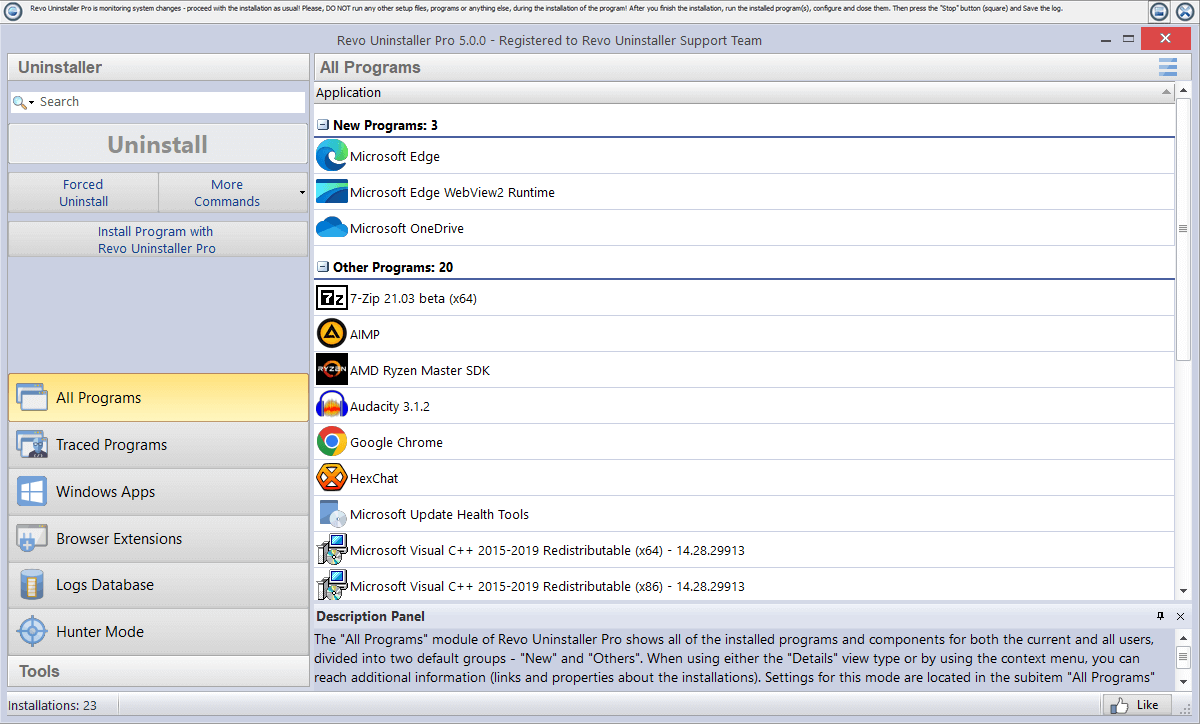
After an uninstall, see folders, registry keys, tasks, and logs that might still belong to the old program, then remove only what you understand.
The history view helps you compare what changed session to session. Use it when IT asks “what did you remove last Tuesday?” or when you need to roll back a rushed cleanup.
Point at a running window, shortcut, or tray icon to jump to the related uninstall entry.
It shines when the publisher name on disk does not match the marketing name in Settings, or when a helper executable keeps respawning after you thought the suite was gone.
Revo can surface shortcuts to built-in utilities (Services, Firewall, Network connections, and more) so you spend less time hunting Control Panel applets during a cleanup.
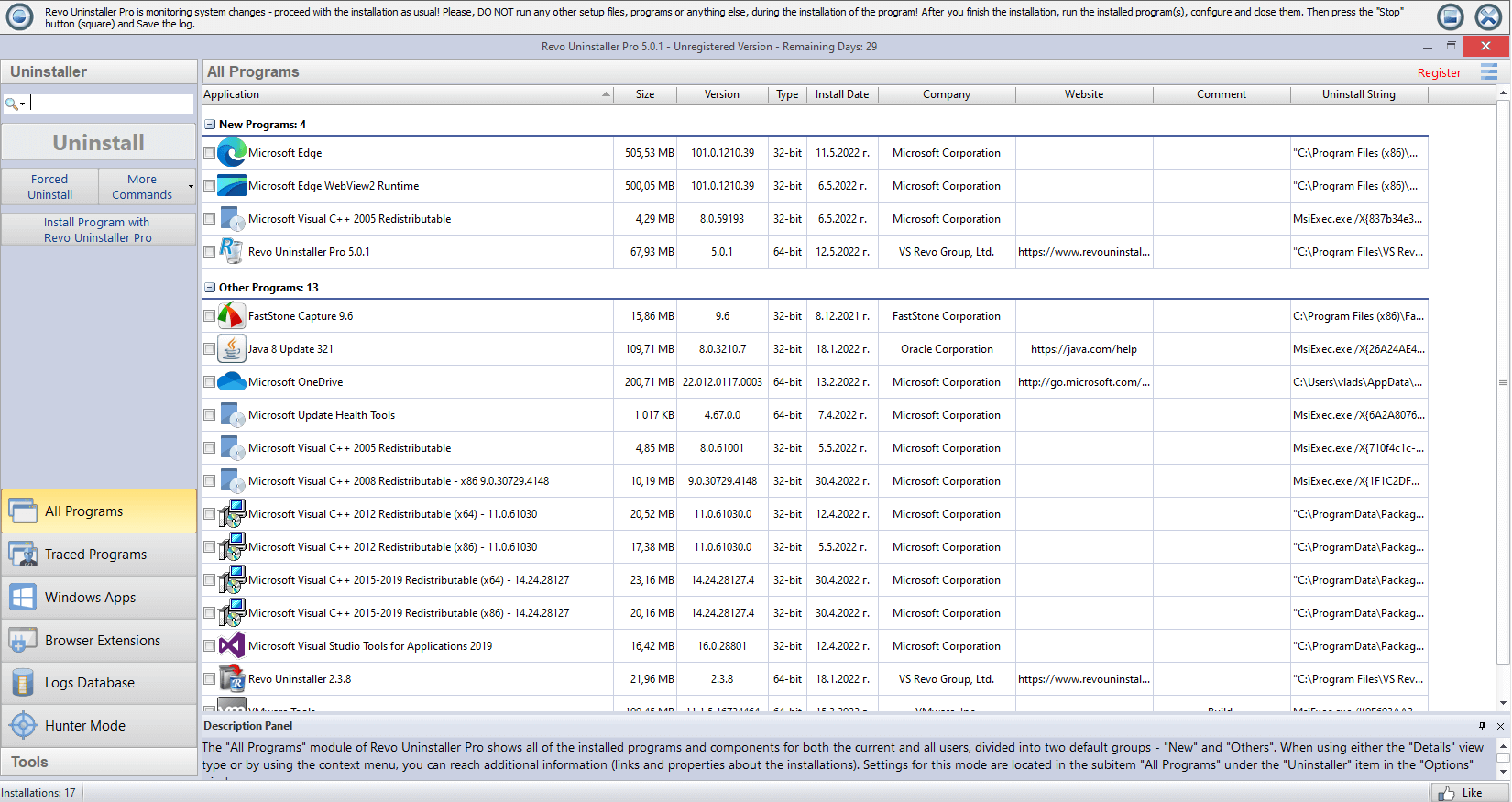
Asset: images/hq-realtime-monitor.png
For entries that are broken or missing from the usual list.
Use when Add/Remove shows nothing but files remain, or when MSI rollback left a half-registered product.
Temp files, caches, and logs tied to removed software.
Helpful after creative suites, game clients, and IDEs that scatter caches outside Program Files.
Log what an installer changes so rollback is clearer.
Ideal before installing trial software you know will be picky about removal later.
Pair big cleanups with a restore point on important PCs.
Cheap insurance before you touch services, drivers, or dozens of registry keys.
Fewer programs auto-starting after each reboot.
Cross-check with Task Manager; disable before uninstall if the updater keeps locking files.
Export backups before editing; remove keys with care.
Never bulk-delete hives you cannot map back to a specific vendor folder.
Install tracking records file and registry touches while a setup runs. That log becomes your map when the vendor uninstaller skips half the tree. Start tracing before you double-click the installer, stop it when the wizard finishes, and keep the log until you are sure the app is gone.
If you forgot to trace, use leftover scan after the normal uninstall and cross-check paths against what the vendor lists in release notes.
Microsoft Store entries sometimes reinstall from the cloud when the same account signs in. Remove them from the app list first, then check startup and scheduled tasks if a companion agent keeps returning.
Browser extensions can outlive the host program. The extensions module lists what is registered per profile; pair it with the browser cleanup article before you wipe a whole Chrome or Edge profile.
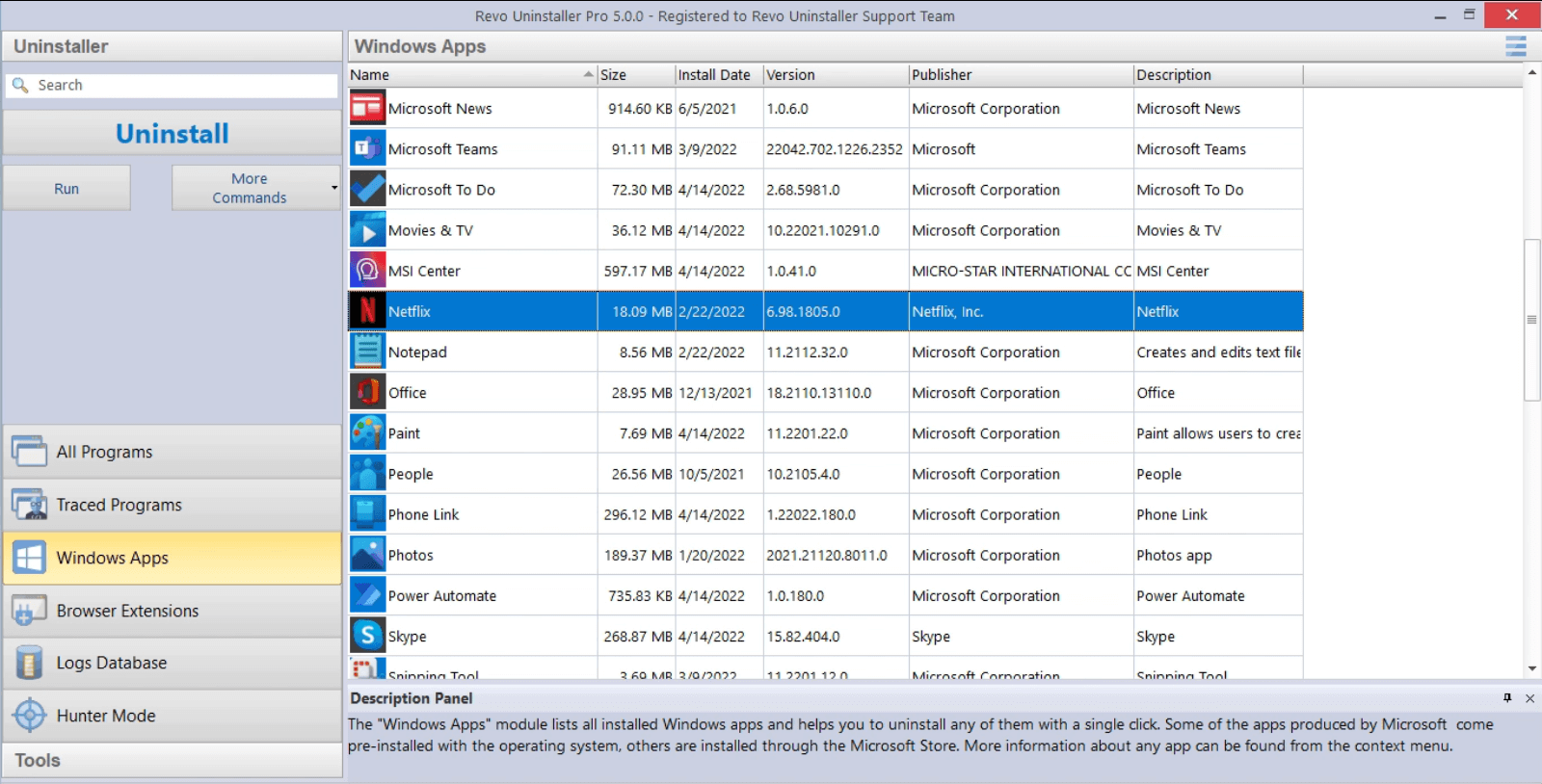
The app list groups classic Win32 programs, optional Windows features, and Store packages in one place. Use it when Settings shows “something went wrong” but you still see the icon on the desktop.
Sort by size or install date when you are hunting the last trial that ate disk space. For a visual pass, open Media and pause on the module tour.
Many vendors register a daily or hourly task even when the UI looks idle. After uninstall, open Task Scheduler and filter by the publisher string you saw in Program Files. Disable or delete only tasks whose actions still point at paths you removed.
Toast notifications and Action Center entries often come from a separate “companion” package. If alerts persist, cross-check the services article before you strip shell extensions that other apps share.